
Seedance.com.ai provides several Kling models inside the same AI Video workspace, making it possible to generate videos and test different Kling versions without changing to a separate platform.
This Kling AI tutorial focuses on how to choose a Kling model, prepare a clear creative direction, use supported reference materials when available, generate a first result, and compare different Kling versions more effectively.
Kling Models Available on Seedance.com.ai
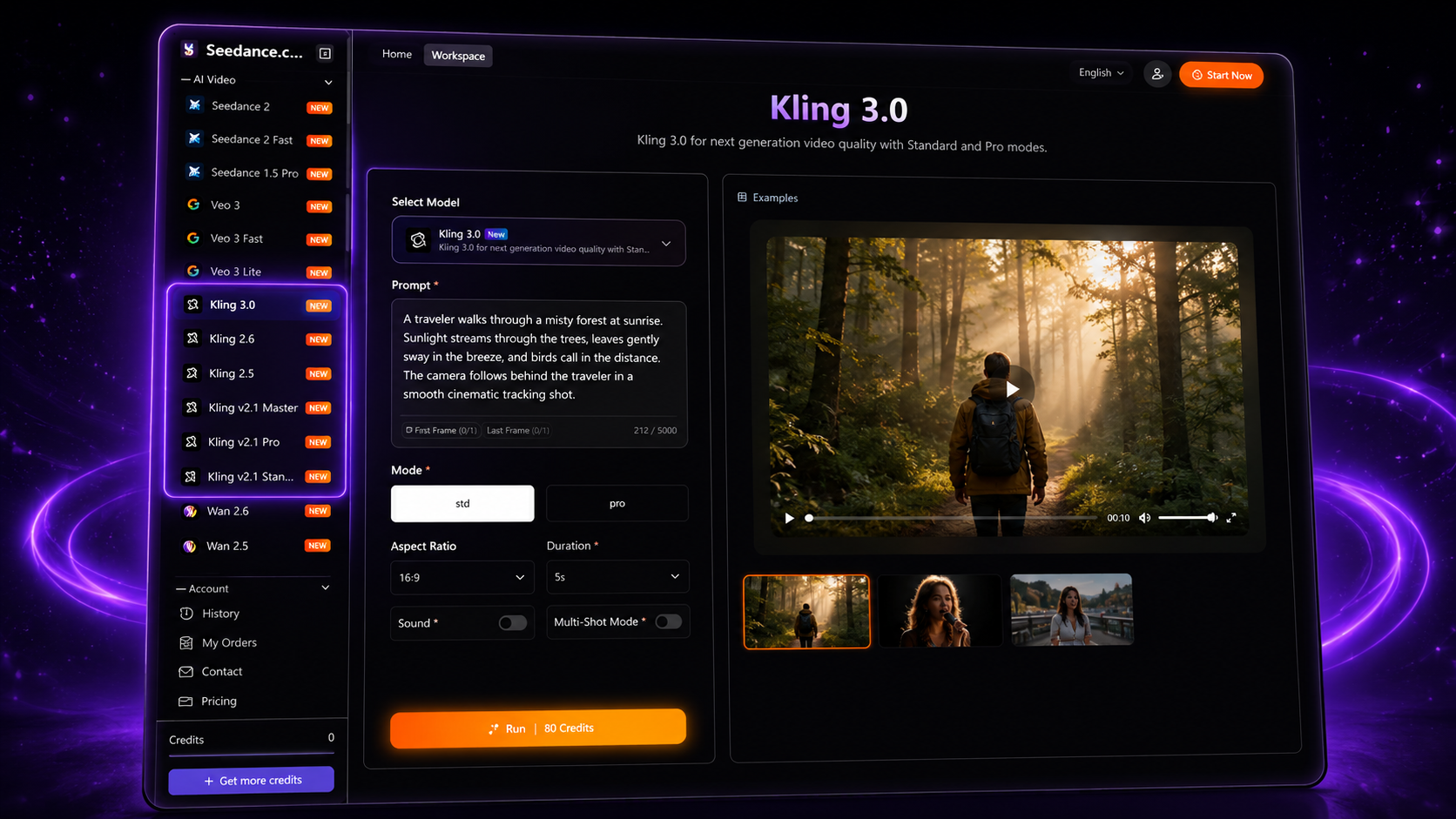
The Seedance.com.ai workspace currently includes several Kling options:
Kling 3.0
Kling 2.6
Kling 2.5
Kling v2.1 Master
Kling v2.1 Pro
Kling v2.1 Standard
The available reference inputs and generation settings can vary depending on the Kling model you select, so use the controls displayed for the current version rather than assuming every model works exactly the same way.
How to Use Kling AI on Seedance.com.ai
Step 1: Choose a Kling Model
Open the Seedance.com.ai AI Video workspace and select one of the available Kling models from the model list.
If you are using Kling for the first time, start with one version and complete a full generation before switching to another model. This gives you a baseline result that you can use for comparison later.
Step 2: Define the Main Video Idea
Before writing a long prompt, decide what the video is actually supposed to show.
Start with the subject and main action, then add the scene, camera direction, and atmosphere only when they support the same idea.
Subject + Action + Scene + Camera Direction + Atmosphere
For example:
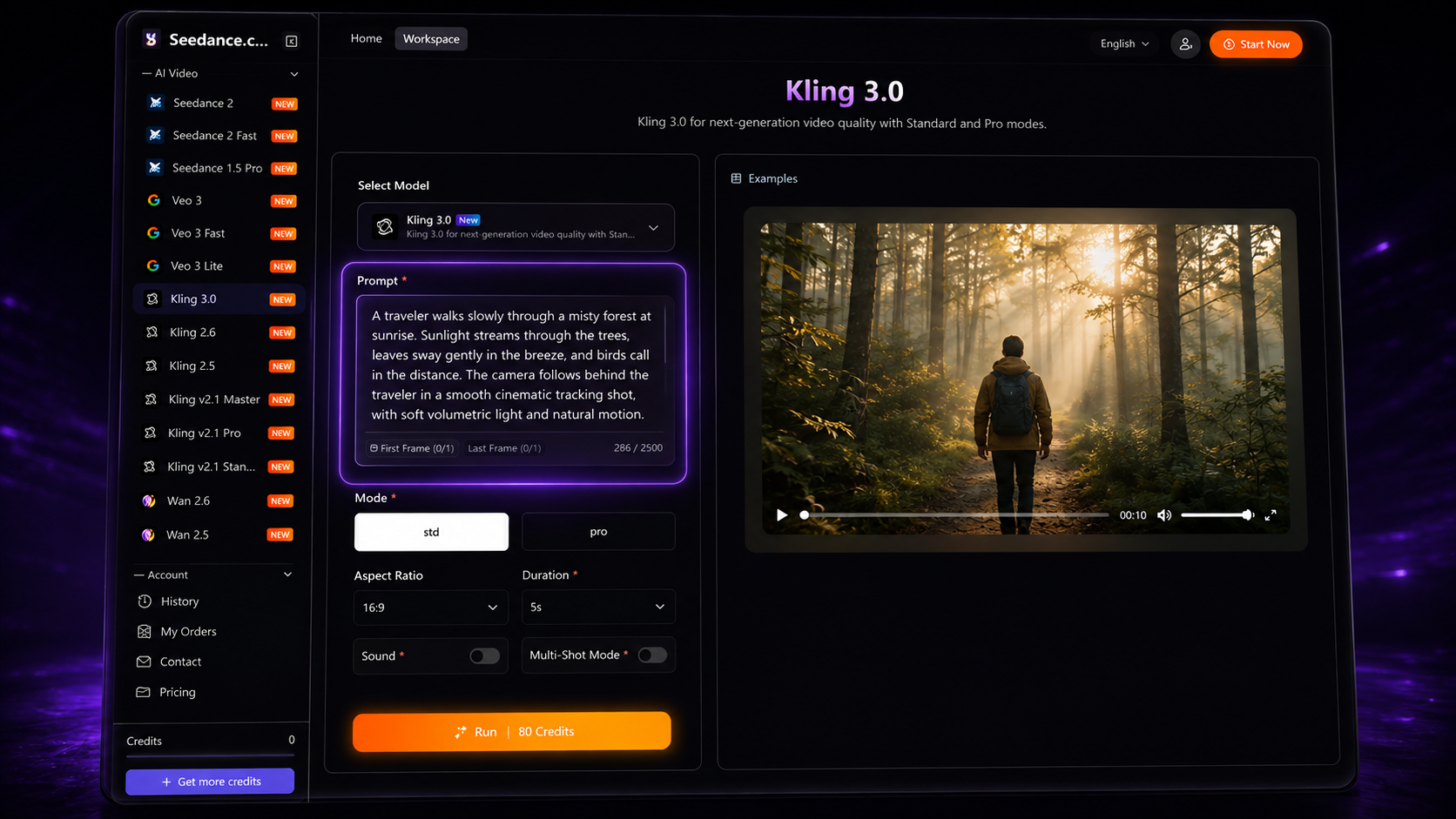
A traveler walks slowly through a misty forest at sunrise while leaves move gently in the wind. The camera follows from behind and gradually moves closer. Soft morning light and a quiet cinematic atmosphere.
Step 3: Write a Focused Kling Prompt
A good Kling AI prompt should clearly explain what changes during the video rather than only describing how the scene looks.
Avoid combining too many unrelated actions in a single generation. If the main idea is a person walking through a forest, focus on that action before adding secondary movement or complex camera changes.
For more detailed prompt-writing techniques, read the AI Video Prompt Guide.
Step 4: Add Supported Reference Materials
If the selected Kling model displays reference input options, add the supported material directly in the workspace.
Use references to support the same visual direction as the prompt. If you upload an image, let the image provide the appearance while the prompt focuses more on movement, environmental changes, and camera behavior.
Step 5: Review the Available Settings
Check the generation settings shown for the selected Kling model before starting the task.
The exact controls may vary between Kling versions, so use the resolution, aspect ratio, duration, and other options currently displayed in the workspace.
Step 6: Generate and Review the Result
Start the generation and compare the result with your original creative direction.
Check whether the subject, action, environment, camera movement, and atmosphere match what you described. If one part is wrong, adjust that specific part instead of rewriting everything at once.
How to Compare Different Kling Models
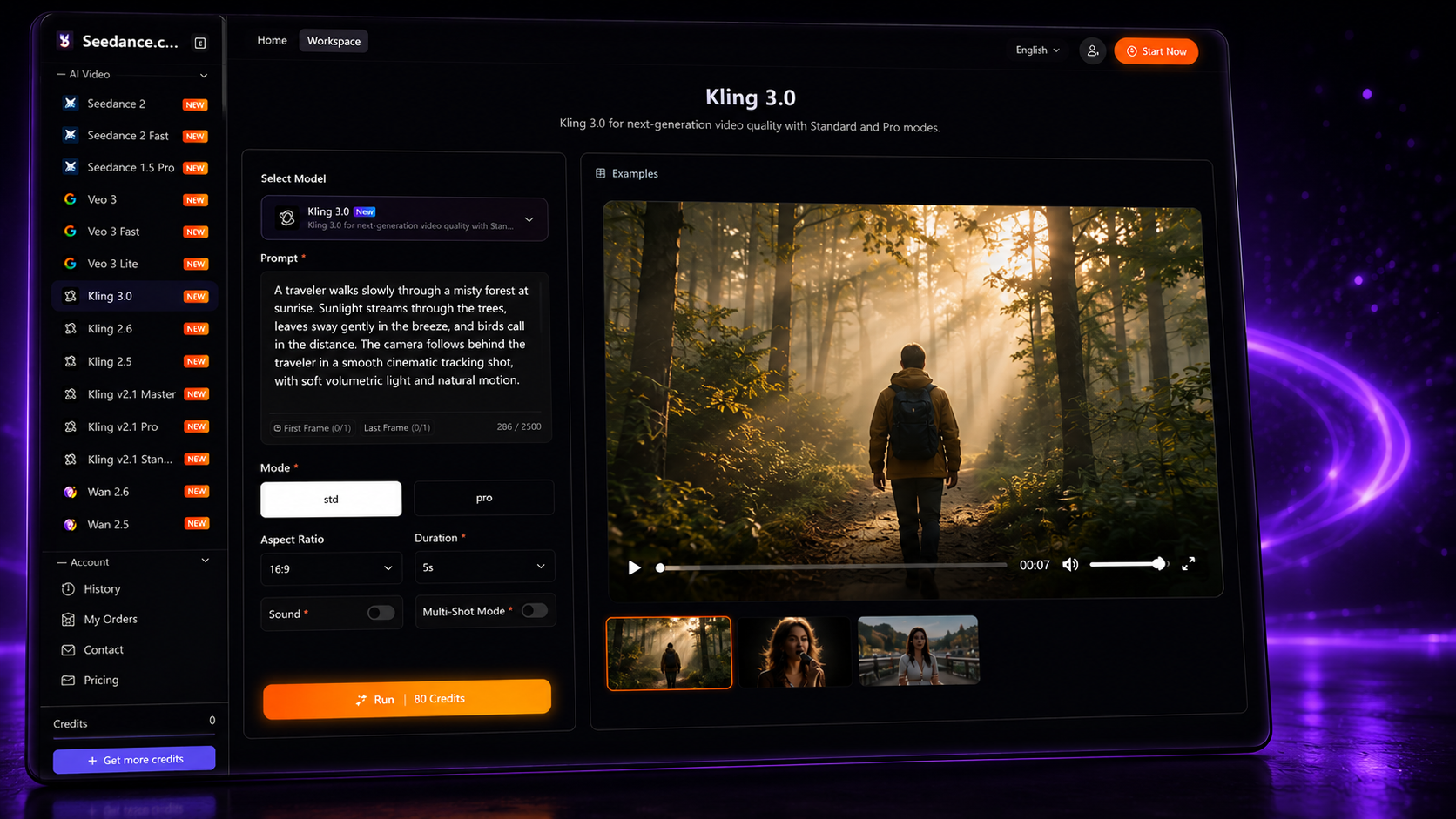
Because several Kling versions are available in the same workspace, you can use the same creative idea to compare how different models interpret it.
The most useful approach is to keep the main input as consistent as possible:
Same Prompt + Same Reference Material + Similar Settings → Change the Kling Model
For example, generate a video with Kling 3.0 using one prompt. Then switch to another Kling version while keeping the main prompt and reference material unchanged.
Compare the results based on:
Prompt following: Which result stays closer to your written direction?
Subject movement: How does each version interpret the main action?
Environment: Are background movements and scene changes handled differently?
Camera direction: Does the generated camera movement match your instructions?
Overall result: Which version better fits the specific video you are trying to create?
This comparison is more useful than changing the model, prompt, references, and settings at the same time, because you can more easily understand what caused the difference.
Using Kling for Text-to-Video
If you are starting from a written idea, the prompt needs to establish both the visual scene and the intended motion.
A cyclist moves through a quiet city street just after sunset. Streetlights reflect across the wet road while the camera tracks alongside the cyclist. Soft cinematic lighting and realistic motion.
Make the main action clear first, then add the environment and camera direction.
For the complete workflow, read the Seedance Text-to-Video Tutorial.
Using Kling with a Reference Image
If the selected Kling model supports an image reference, the uploaded image can establish the subject, composition, and visual style.
In this case, focus the prompt more heavily on motion:
The person slowly turns toward the window while the curtains move gently in the breeze. Soft light shifts across the room as the camera gradually pulls back.
You do not need to repeat every visual detail already visible in the source image.
For more guidance, read the Seedance Image-to-Video Tutorial.
How to Improve a Kling Generation
If the first Kling result does not match your idea, identify the specific problem before changing the prompt.
The Subject Barely Moves
Make the main action more specific. Replace vague instructions such as “moves naturally” with a direct description of what the subject should do.
The Camera Movement Feels Wrong
Simplify the camera direction. Instead of combining several movements, start with one clear instruction such as a slow push-in, pull-back, pan, or tracking shot.
The Scene Feels Too Busy
Remove secondary actions or unnecessary environmental changes. One strong movement direction is often easier to refine than several competing actions.
The Reference and Prompt Do Not Match
Make sure the uploaded material and written instructions support the same scene. Avoid using references that introduce a different subject or visual direction unless that difference is intentional.
Kling Prompt Tips
Start with the main action. Make it obvious what should happen during the video.
Keep the scene focused. Avoid adding several unrelated ideas to one prompt.
Use camera direction deliberately. Add it when it helps define the result.
Keep references consistent. The prompt and reference material should support the same creative direction.
Change one major element at a time. This makes it easier to understand why the next result is different.
Kling AI FAQ
Which Kling models are available on Seedance.com.ai?
The workspace currently includes Kling 3.0, Kling 2.6, Kling 2.5, Kling v2.1 Master, Kling v2.1 Pro, and Kling v2.1 Standard.
Which Kling model should I use?
There is no single version that needs to be used for every project. Start with one model, generate a baseline result, and compare another version using the same creative input if you want to test the difference.
Can Kling generate videos from text?
You can use the Prompt area to describe the video you want to generate. The specific workflow and settings depend on the Kling model currently selected.
Can I use reference materials with Kling?
If the selected Kling version displays reference input options, you can add the supported material directly in the workspace.
How can I compare two Kling models?
Keep the main prompt, reference material, and general settings as consistent as possible. Change only the Kling model, then compare how each result follows the same creative direction.
How can I improve my Kling prompt?
Focus on the subject, main action, environment, camera direction, and atmosphere. If one part of the video is wrong, refine that specific instruction instead of rewriting the entire prompt.
Start Testing Kling on Seedance.com.ai
Using Kling AI on Seedance.com.ai is not only about choosing a model and generating once. With several Kling versions available, you can use the same creative idea as a controlled test and compare how different models interpret it.
Start with one Kling version, create a clear prompt, add supported references when needed, generate a baseline result, and then test another version while keeping the main creative direction consistent.



