
A single still image can become the starting point for an AI-generated video. With Seedance image-to-video on Seedance.com.ai, you can upload an image, describe how the scene should move, adjust the available video settings, and generate a dynamic result.
This Seedance image-to-video tutorial focuses specifically on turning static images into videos. Instead of explaining the entire Seedance workflow, this guide shows you how to prepare a source image, write motion-focused prompts, configure the available settings, and refine the generated result.
What Is Seedance Image-to-Video?
Seedance image-to-video uses an existing image as visual reference material for AI video generation. The image provides the subject, composition, colors, and other visual information, while your prompt tells the model how the scene should develop over time.
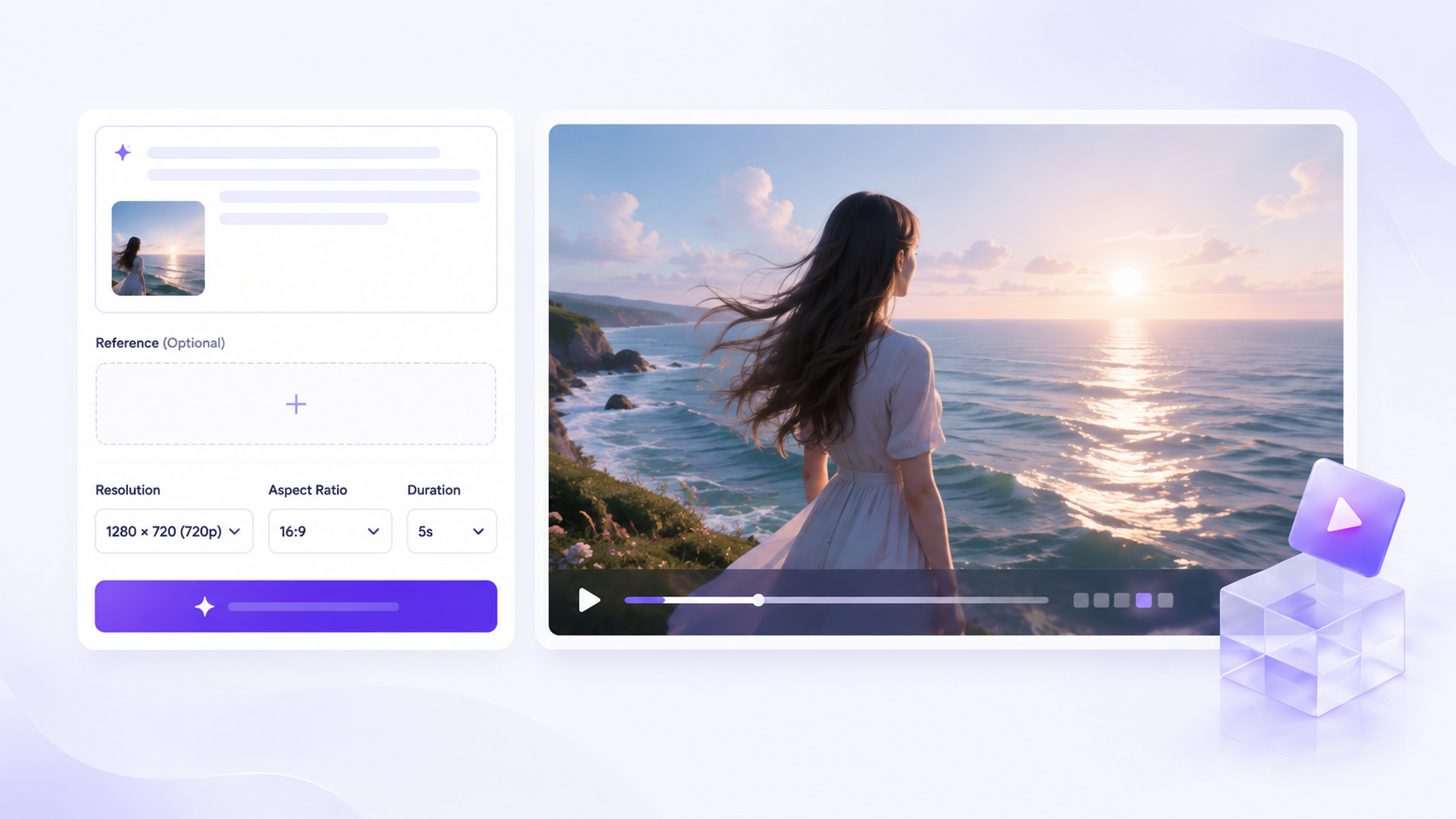
This is different from text-to-video, where the model creates the visual scene primarily from a written description. Image-to-video is more suitable when you already have a portrait, product photo, landscape, artwork, or another image that you want to bring to life.
You can also explore the broader Seedance.com.ai AI video generation platform to see how image-to-video fits alongside other supported video workflows.
If you want an overview of the complete platform workflow first, read the Seedance AI Tutorial.
How to Turn a Still Image into a Video with Seedance
The basic image-to-video workflow on Seedance.com.ai is simple: choose a supported Seedance model, add your image, describe the motion you want, review the available video settings, and generate the result.
Step 1: Choose a Seedance Model
Open the Seedance.com.ai AI Video workspace and select the Seedance model you want to use. The available inputs and generation settings can vary depending on the selected model.
For this tutorial, the important part is that the selected workflow supports image references so your still image can guide the generated video.If you want to try an image-based workflow with Kling, see our Kling AI Tutorial for the full Kling workflow on Seedance.com.ai.
Step 2: Upload Your Reference Image
Add your still image through the Reference Images area in the workspace. The source image becomes the visual foundation of the generated video.
Choose an image where the main subject and composition are easy to understand. A clear image usually makes it easier to write precise movement instructions.
Step 3: Write a Motion-Focused Prompt
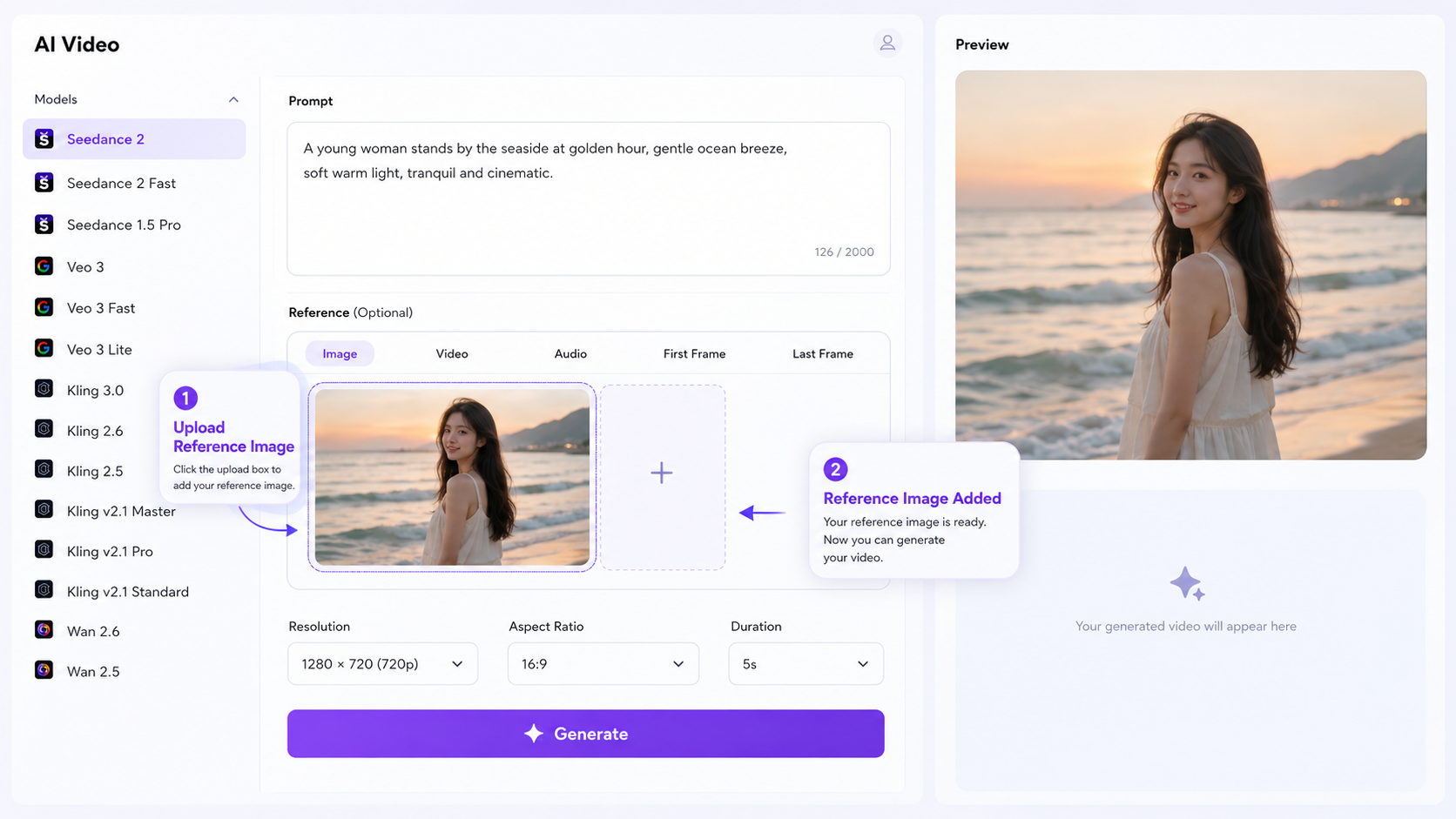
This is the most important difference between image-to-video and text-to-video prompting.
Because the model can already use the uploaded image as visual reference, your prompt should focus mainly on what should move and how the scene should change.
A useful structure is:
Subject Movement + Environmental Movement + Camera Movement + Atmosphere
For example, imagine your reference image shows a woman standing near the ocean. Instead of describing the entire image again, you can write:
Her hair moves gently in the sea breeze while small waves roll toward the shore. She slowly turns toward the ocean as the camera gradually pulls back. Soft sunset light creates a calm cinematic atmosphere.
This gives the model clear instructions about movement while allowing the uploaded image to provide the existing visual details.
For more detailed guidance on using reference video to control motion and camera movement, see our Seedance reference video tutorial.
Step 4: Adjust the Video Settings
Before generating, review the settings available for the selected model. Seedance.com.ai provides controls such as resolution, aspect ratio, and video duration.
Choose these settings according to how you plan to use the video. The exact options shown in the workspace may depend on the selected model.
Step 5: Generate and Review the Video
Once the reference image, prompt, and settings are ready, start the generation process. After the result is available, compare it with your original image and check whether the motion follows your intended direction.
Pay particular attention to subject movement, background movement, camera direction, and whether important visual details remain consistent with the reference image.
How to Choose a Good Image for AI Animation
Your source image plays an important role in AI image-to-video generation. Before uploading an image, make sure the main subject and visual structure are clear.
Use a clear main subject. The viewer and the model should be able to identify the primary focus of the image quickly.
Avoid unnecessary visual clutter. Too many competing subjects can make motion instructions less focused.
Check image quality. Avoid heavily blurred or badly compressed source images when possible.
Think about possible movement. Choose an image where you can easily imagine how the subject, environment, or camera could move.
You do not need to redesign or heavily edit every source image before using it. The goal is simply to start with visual material that gives the model a clear direction.
How to Write Better Image-to-Video Prompts
A common mistake is spending most of the prompt describing information that is already visible in the uploaded image.
For image-to-video, focus more heavily on movement.
Describe Subject Movement
Explain exactly what the main subject should do.
The person slowly turns toward the camera while their hair moves naturally in the wind.
Describe Environmental Movement
Static backgrounds can also contain natural motion.
Clouds drift slowly across the sky while leaves move gently in the breeze.
Add Camera Movement When Needed
If camera behavior is important to your intended result, include it directly in the prompt.
The camera slowly pulls back to reveal more of the surrounding landscape.
Keep the Motion Direction Focused
Avoid asking for too many unrelated movements in one short generation. Start with the most important movement and add secondary actions only when they support the same scene.
For a more detailed explanation of prompt structure, see the Seedance.com.ai AI Video Prompt Guide.
Image-to-Video Prompt Examples
Portrait Animation
The woman slowly turns toward the camera, her hair moving gently in the breeze. She blinks naturally while the camera makes a subtle push-in.
Landscape Animation
Mist slowly moves across the mountain valley while clouds drift through the sky. Trees sway gently in the wind as the camera slowly pans across the landscape.
Product Image Animation
Soft reflections move across the surface of the product while the camera slowly moves closer. The lighting shifts subtly to reveal its shape and details.
These examples follow the same principle: let the image establish the appearance and use the prompt to explain the motion.
Common Image-to-Video Problems
The Video Feels Too Static
Your prompt may not describe enough movement. Add clearer instructions for the subject, background, or camera instead of adding more visual adjectives.
The Movement Is Different from What You Expected
Make the action more specific. Replace general instructions such as “make the image move” with a direct description of who or what should move and in which direction.
Too Many Elements Move at the Same Time
Simplify the prompt and identify the most important motion first. A focused movement direction is easier to refine than several unrelated actions happening simultaneously.
The Camera Does Not Match the Scene
If camera movement matters, describe it explicitly. A simple slow pull-back, push-in, or pan can communicate your intended visual direction more clearly.
Image-to-Video vs Text-to-Video
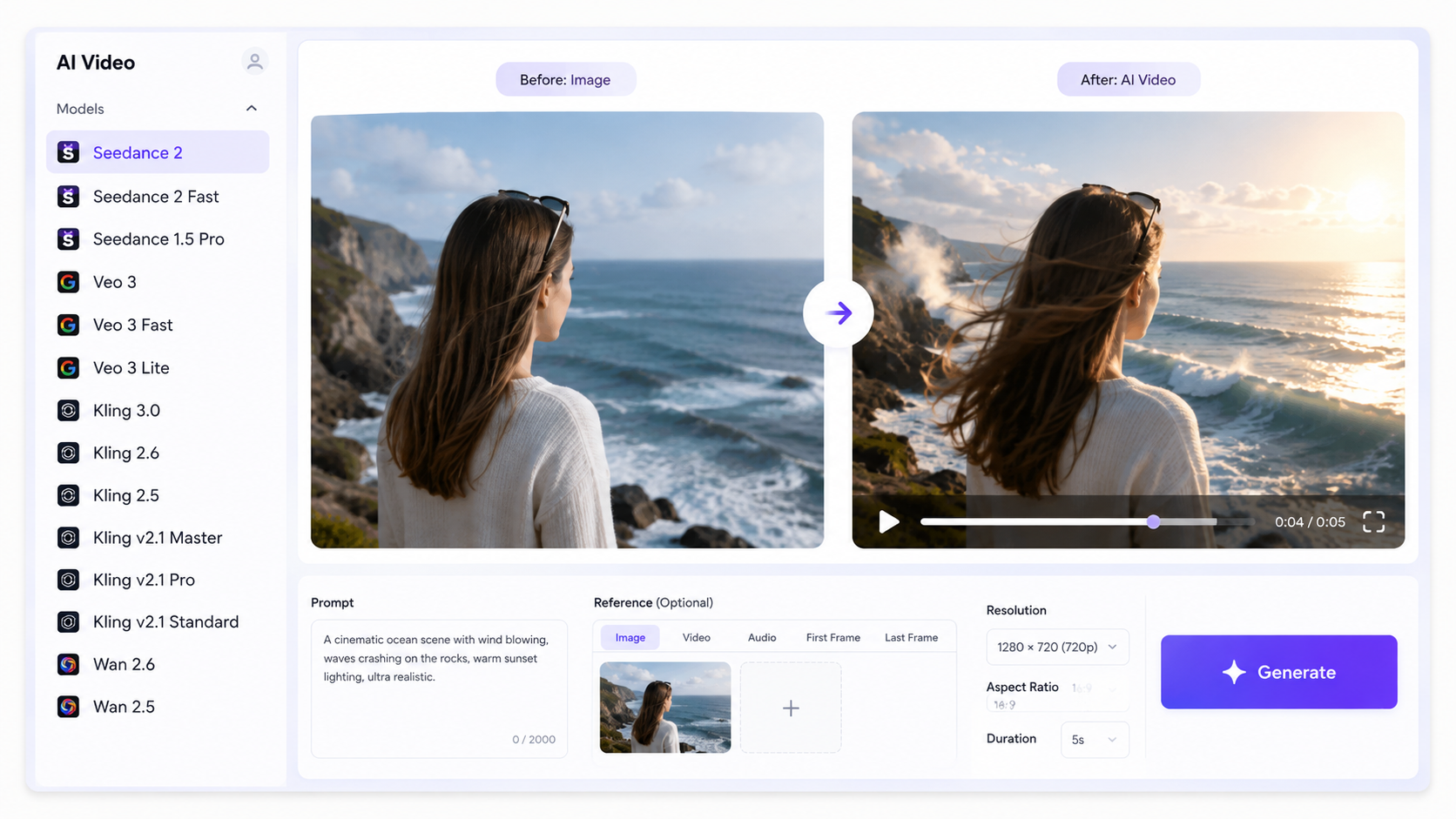
The main difference is what you start with.
Image-to-video starts with an existing image. The image provides visual guidance while the prompt focuses primarily on motion and scene development.
Text-to-video starts primarily with a written prompt. The prompt needs to describe both the visual scene and the intended movement.
If you want to create a video without starting from an existing image, read the Seedance Text-to-Video Tutorial.
Tips for Better Seedance Image-to-Video Results
Start with a clear image. Make sure the primary subject is easy to identify.
Describe movement instead of repeating the image. Let the reference provide the appearance while your prompt provides direction.
Keep the main action simple. Avoid combining too many unrelated movements in one generation.
Use camera instructions deliberately. Add camera movement when it supports the scene rather than adding it automatically.
Refine specific problems. If one part of the result is wrong, adjust that part of the prompt instead of rewriting everything.
Seedance Image-to-Video FAQ
Can I animate a still image with Seedance?
Yes. A supported Seedance workflow can use an uploaded image as reference material while your prompt describes how the scene should move or develop.
What should I write in an image-to-video prompt?
Focus primarily on movement. Describe what the subject should do, how the environment should move, and any important camera direction or atmosphere.
Do I need to describe everything visible in the image?
No. The uploaded image already provides visual information. Your prompt is more useful when it explains the motion or changes you want to introduce.
What video settings are available?
The Seedance.com.ai workspace provides settings such as resolution, aspect ratio, and duration. Available options may vary depending on the selected model.
Should I use image-to-video or text-to-video?
Use image-to-video when you already have a visual starting point that you want to animate. Use text-to-video when you want to create a new scene primarily from a written idea.
Turn Your Still Image into an AI Video
The Seedance image-to-video workflow is built around a simple idea: use your still image for visual guidance and use your prompt to describe movement.
Start with a clear source image, write focused motion instructions, choose the available video settings, generate the result, and refine the specific movements that need improvement. Once you understand this approach, turning a static image into a dynamic AI video becomes much easier to control.



