
Wan is one of the AI video model families available inside the Seedance.com.ai AI Video workspace. Depending on how you want to start your project, you can use Wan for prompt-based video generation or work with supported visual references when they are available for the selected model.
This Wan AI tutorial focuses on two practical workflows: creating a new video from a text prompt and turning an existing image into a dynamic video. It also explains how to test Wan 2.6 and Wan 2.5 using the same creative direction.
Wan Models Available on Seedance.com.ai
Seedance.com.ai currently provides two Wan options:
Wan 2.6
Wan 2.5
You can switch between them directly from the model selection area. The exact reference inputs and generation settings shown in the workspace may vary depending on the model you select.
Choose Your Wan Workflow
Before generating, first decide what you already have.
If you only have an idea and want the AI to create the complete scene, start with Wan text-to-video.
If you already have a still image that defines the subject, composition, or visual style, use an image-to-video workflow when the selected Wan model provides image reference input.
This distinction is important because the prompt should be written differently depending on your starting material.
How to Use Wan for Text-to-Video
Step 1: Select Wan 2.6 or Wan 2.5
Open the Seedance.com.ai AI Video workspace and select the Wan model you want to test.
For your first generation, use one version and keep it selected until you have a baseline result. You can compare the other Wan version later.
Step 2: Define the Complete Scene
Because text-to-video begins without an existing image, your prompt needs to establish both the visual scene and the motion.
A useful structure is:
Subject + Action + Scene + Camera Direction + Atmosphere
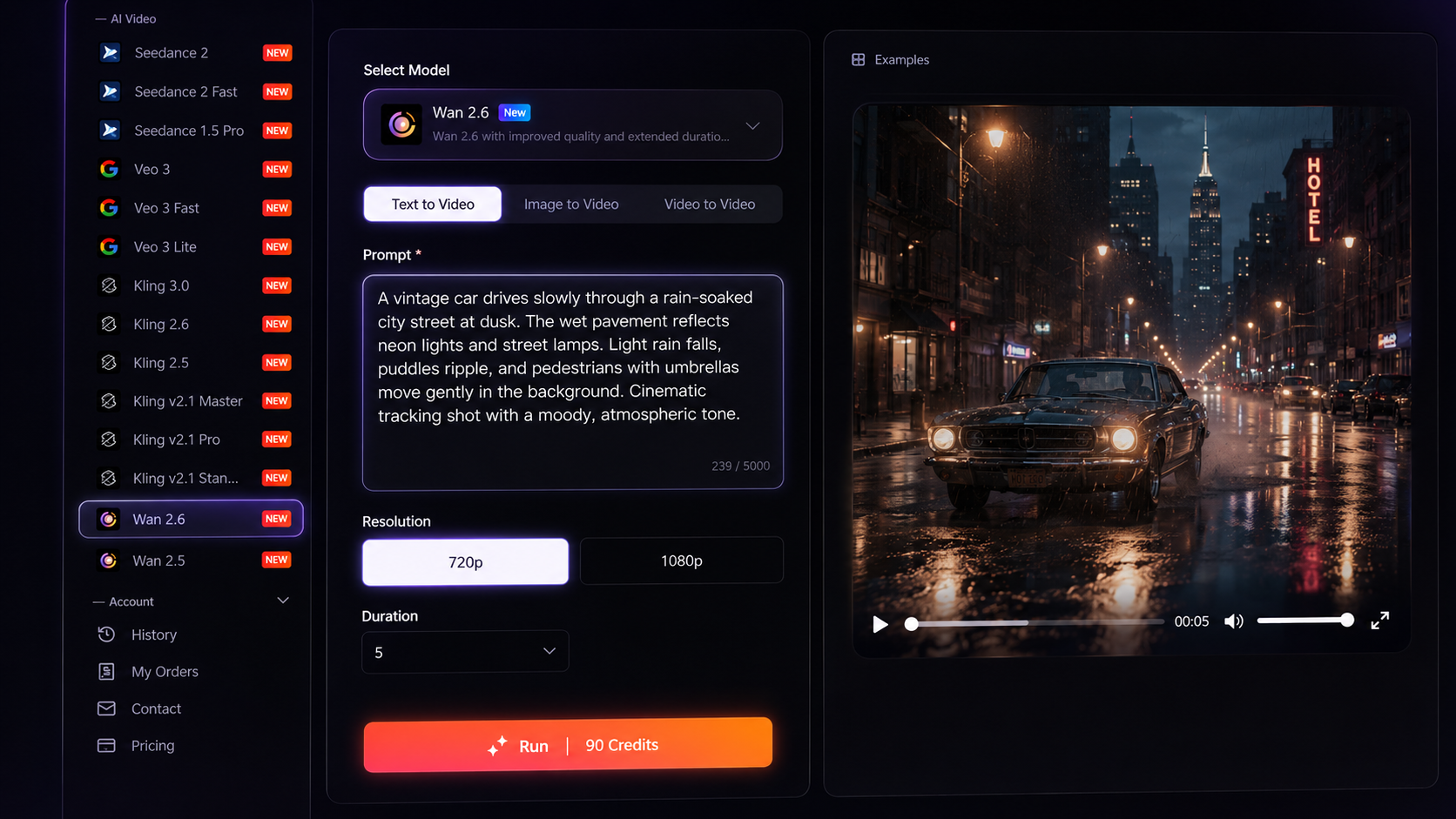
For example:
A vintage car moves slowly through a quiet city street after the rain. Reflections shimmer across the wet road while the camera follows from behind. Soft evening light creates a realistic cinematic atmosphere.
This gives the model information about what the video contains, what moves, and how the scene should be presented.
Step 3: Review the Available Settings
Check the generation controls displayed for the selected Wan model before generating. Use the resolution, aspect ratio, duration, and other settings currently shown in the workspace.
The available options can change between models, so follow the current interface rather than assuming Wan 2.6 and Wan 2.5 always use identical settings.
Step 4: Generate and Review
Generate the video and compare the result with your original prompt.
Check whether the main subject, movement, camera direction, environment, and visual atmosphere follow your intended idea.
For a more detailed explanation of creating video directly from a prompt, read the Seedance Text-to-Video Tutorial.
How to Use Wan for Image-to-Video
Step 1: Start with a Clear Reference Image
If image reference input is available for the selected Wan model, upload an image that clearly shows the subject or scene you want to animate.
A strong starting image should make the main subject and composition easy to understand.
Step 2: Focus the Prompt on Motion
This is where image-to-video prompting differs from text-to-video.
The image already provides much of the visual information, so your prompt can focus more strongly on what should move:
Subject Movement + Environmental Movement + Camera Movement + Atmosphere
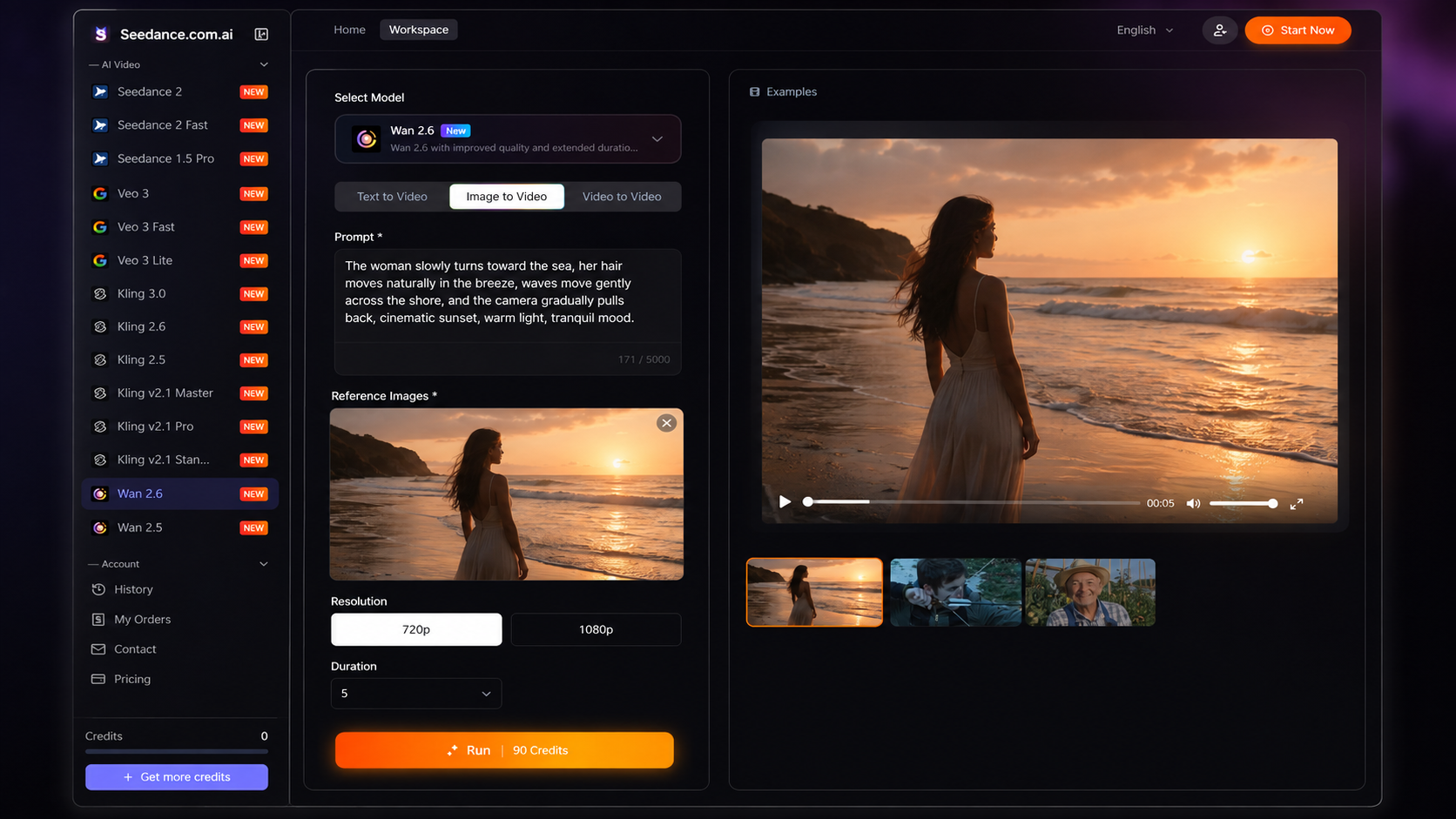
For example, imagine the reference image shows a person standing beside the ocean:
The person slowly turns toward the sea while their hair moves naturally in the breeze. Small waves roll toward the shore as the camera gradually pulls back. Calm cinematic movement.
You do not need to spend most of the prompt describing the person's appearance or the existing background again.
Step 3: Generate and Check the Motion
After generating, compare the video with the source image.
Pay particular attention to whether the subject moves as intended, whether the environment changes naturally, and whether the camera direction supports the original composition.
For the full image animation workflow, read the Seedance Image-to-Video Tutorial.
Text-to-Video vs Image-to-Video with Wan
The main difference is how much visual information the prompt needs to provide.
With Wan text-to-video, the prompt establishes the scene from the beginning. It should explain both what the video looks like and how it moves.
With Wan image-to-video, the reference image already establishes much of the appearance. The prompt can focus more directly on subject motion, environmental movement, and camera behavior.
If you are not sure which workflow to use, ask yourself one simple question: do you already have an image that you want the generated video to follow?
How to Compare Wan 2.6 and Wan 2.5
If you want to see how Wan 2.6 and Wan 2.5 behave with your own content, keep the main creative input consistent.
Same Prompt + Same Reference When Available + Similar Settings → Change the Wan Model
Generate a baseline result with one version, then switch to the other Wan model without rewriting the entire idea.
Compare the two results based on:
Prompt following: Which result better matches your instructions?
Subject movement: How does each version handle the main action?
Reference interpretation: If you use an image, how closely does the generated video follow it?
Camera direction: Does the camera behave as requested?
Overall result: Which version better fits the specific scene you are trying to create?
The goal is not to assume that one model is always better. Testing the same creative direction makes it easier to choose the version that works better for your particular video.
How to Improve a Wan Generation
If the Video Feels Too Static
Make the main movement more specific. Instead of writing “the subject moves naturally,” describe exactly what the subject should do.
If the Scene Changes Too Much
Simplify the prompt and remove unnecessary secondary actions. Keep the main subject and movement as the priority.
If the Camera Does Not Follow Your Direction
Use one clear camera instruction instead of combining several movements in the same short prompt.
If an Image Reference Is Not Producing the Motion You Want
Reduce repeated visual descriptions and make the motion instructions more direct. Let the reference image establish the appearance while the prompt explains what should change.
Wan Prompt Tips
Decide your workflow first. Text-to-video and image-to-video prompts should not be written exactly the same way.
Make the main movement clear. Video generation needs action, not only visual adjectives.
Keep the scene focused. Avoid combining too many unrelated movements in one generation.
Use reference images for visual direction. When an image is already providing the appearance, focus the prompt more heavily on motion.
Refine one problem at a time. This makes it easier to understand which change affected the next result.
For more detailed prompt-writing techniques, read the AI Video Prompt Guide.
Wan AI FAQ
Which Wan models are available on Seedance.com.ai?
The AI Video workspace currently includes Wan 2.6 and Wan 2.5.
Can I use Wan for text-to-video?
Yes. You can start with a written prompt and use the available generation controls for the selected Wan model.
Can I use Wan for image-to-video?
If the selected Wan model displays image reference input, you can upload a still image and use your prompt to describe how the scene should move or develop.
Should I choose Wan 2.6 or Wan 2.5?
You can test both with the same main creative direction and compare which result works better for your particular scene.
How should I write a Wan image-to-video prompt?
Focus mainly on subject movement, environmental movement, camera direction, and atmosphere instead of repeating every detail already visible in the source image.
How should I write a Wan text-to-video prompt?
Because there is no starting image, describe both the visual scene and the movement. Include the subject, action, environment, camera direction, and important visual atmosphere.
Start Creating with Wan on Seedance.com.ai
Using Wan on Seedance.com.ai becomes easier once you first decide how you want to start.
Use text-to-video when you want to build the scene from a written idea, or use image-to-video when you already have a visual starting point and the selected Wan model supports image references.
After creating a first result, you can refine the prompt or test Wan 2.6 and Wan 2.5 with the same creative direction to see which version better matches your project.



