
If you want to create AI videos with Veo on Seedance.com.ai, you can access the available Veo models directly from the AI Video workspace and complete the generation process in one place.
This Veo tutorial focuses specifically on how to use Veo on Seedance.com.ai, including how to choose a Veo model, prepare your prompt, use supported references when available, review the generation settings, and improve the result after your first generation.
Veo Models Available on Seedance.com.ai
The Seedance.com.ai workspace currently includes several Veo options:
Veo 3
Veo 3 Fast
Veo 3 Lite
You can switch between these models from the model list in the workspace. The exact reference inputs and generation settings shown may vary depending on the Veo version you select.
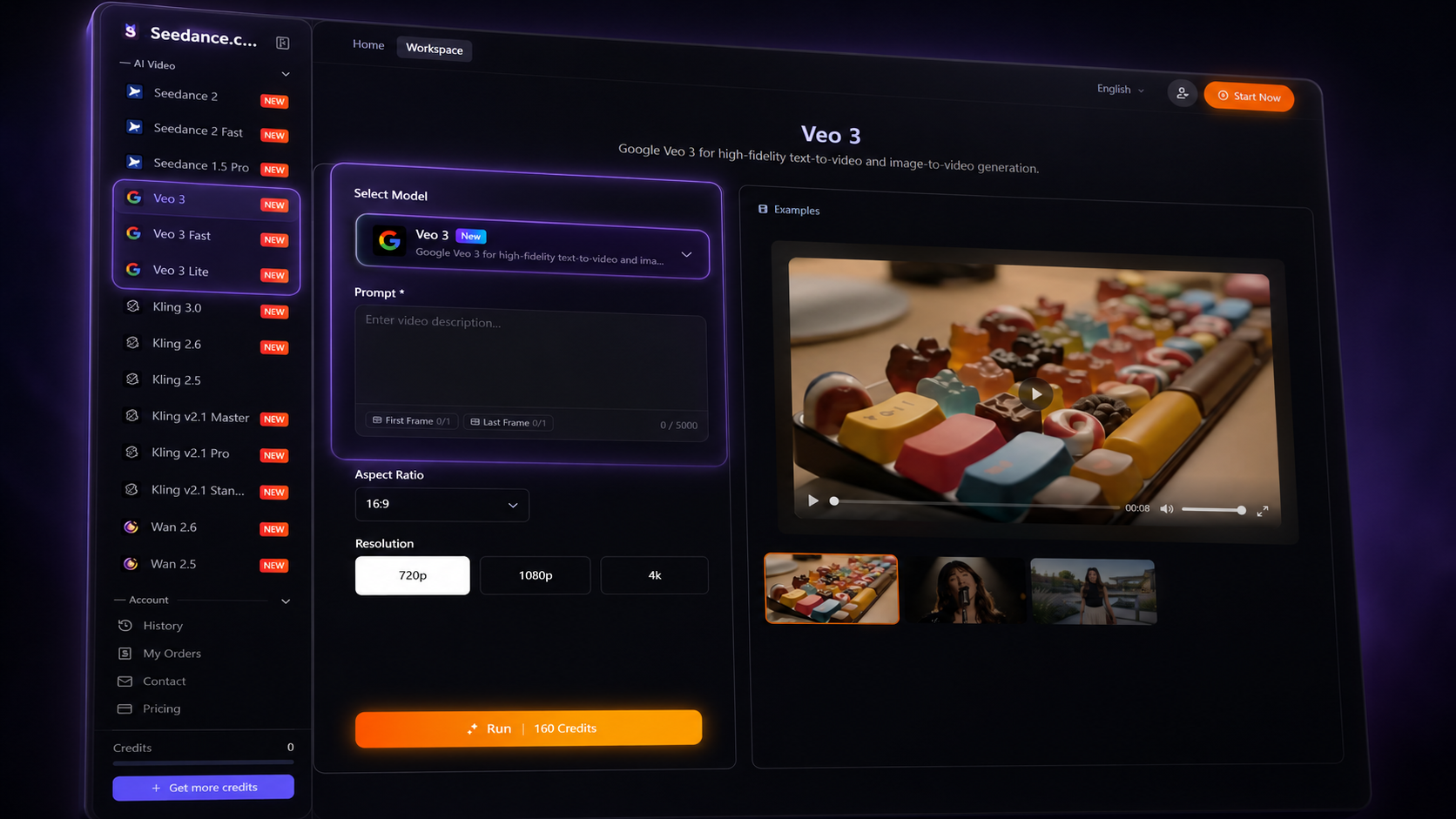
How to Use Veo on Seedance.com.ai
Step 1: Select a Veo Model
Open the AI Video workspace and choose the Veo model you want to use.
If you are using Veo for the first time, it is better to start with one model and complete a full generation before testing another version. This makes it easier to compare results later.
Step 2: Decide What Your Video Should Show
Before writing the prompt, first define the main idea of the video. Think about the subject, what should happen, where the scene takes place, and how the camera should behave.
For example, instead of starting with a very general idea such as “a person on a beach,” decide what should actually happen during the video.
A person walks slowly along a quiet beach at sunset while waves move across the shore. The camera follows from behind and gradually pulls back. Warm natural lighting and a calm cinematic atmosphere.
Step 3: Write Your Veo Prompt
A useful prompt structure is:
Subject + Action + Scene + Camera Direction + Visual Style
The most important part is usually the action. Video prompts should explain what changes over time, not only what the scene looks like.
If you want more detailed prompt-writing techniques, read the AI Video Prompt Guide.
Step 4: Add Supported Reference Materials
If the selected Veo model displays reference input options, you can add the supported material directly in the workspace.
When using a reference image, avoid spending the entire prompt describing what is already visible. Focus more on the movement, environmental changes, and camera direction you want the generated video to follow.
Step 5: Review the Video Settings
Before generating, check the settings available for the selected Veo model. Use the resolution, aspect ratio, duration, and other options shown in the current workspace.
The available controls can vary between models, so use the settings displayed for the Veo version you are currently using.
Step 6: Generate the Video
Once the prompt, supported references, and settings are ready, start the generation.
After the result appears, do not only check whether the video looks visually attractive. Compare it with your original idea and see whether the action, camera direction, environment, and atmosphere match the prompt.
Using Veo for Text-to-Video
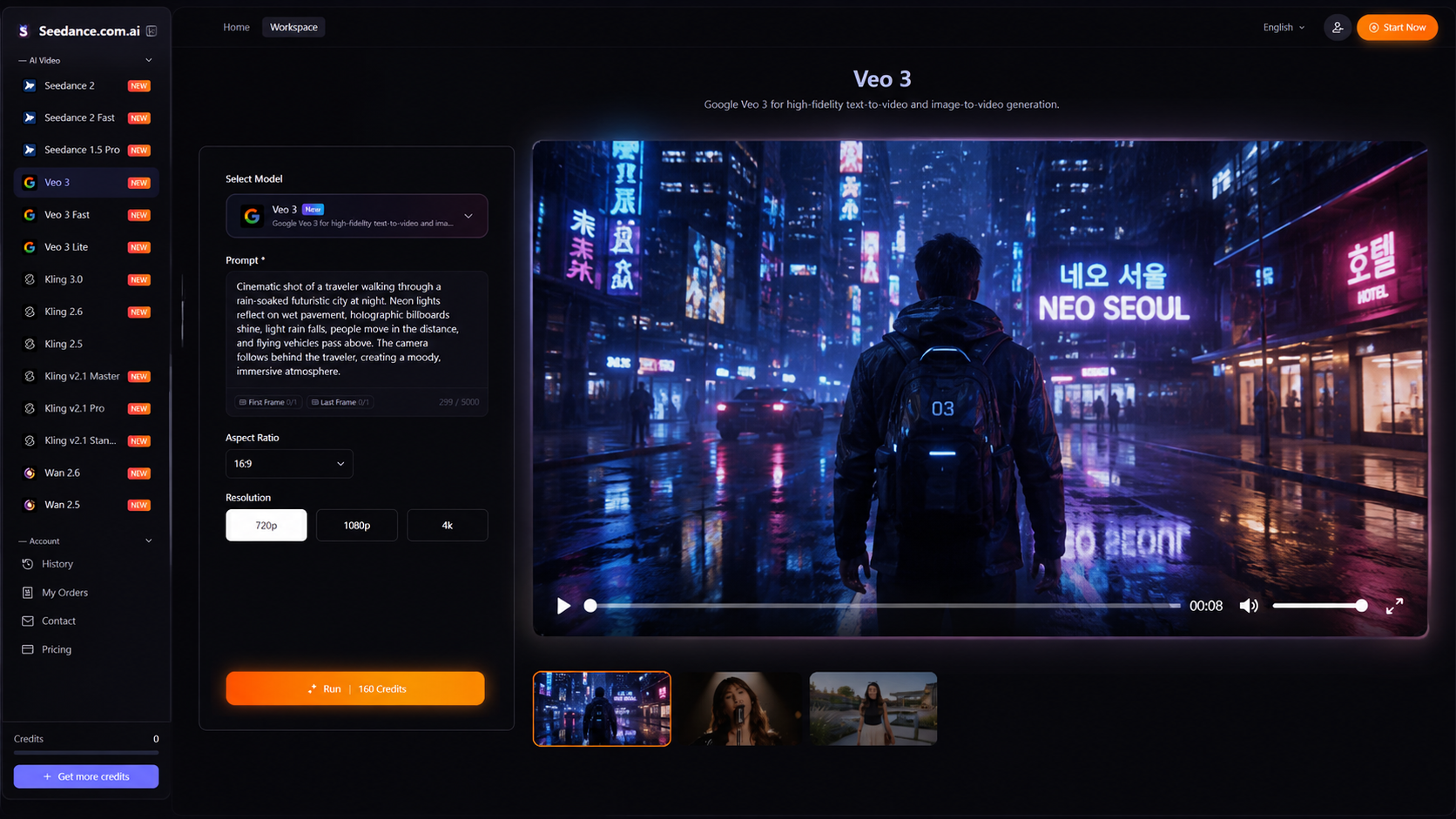
If you are starting without an existing image, your prompt needs to establish both the visual scene and the movement.
For example:
A traveler walks through a wide desert at sunrise while wind moves across the sand. The camera follows from behind before slowly rising to reveal distant mountains. Warm cinematic lighting.
For a more detailed explanation of creating videos from text, read the Seedance Text-to-Video Tutorial.
Using Veo with a Reference Image
If the selected Veo workflow supports image references, the image can provide the visual starting point while the prompt describes how the scene should move.
For example, if the reference image already shows someone standing beside the ocean, the prompt can focus on motion:
The person slowly turns toward the sea while their hair moves in the breeze. Small waves move naturally across the shore as the camera gradually pulls back.
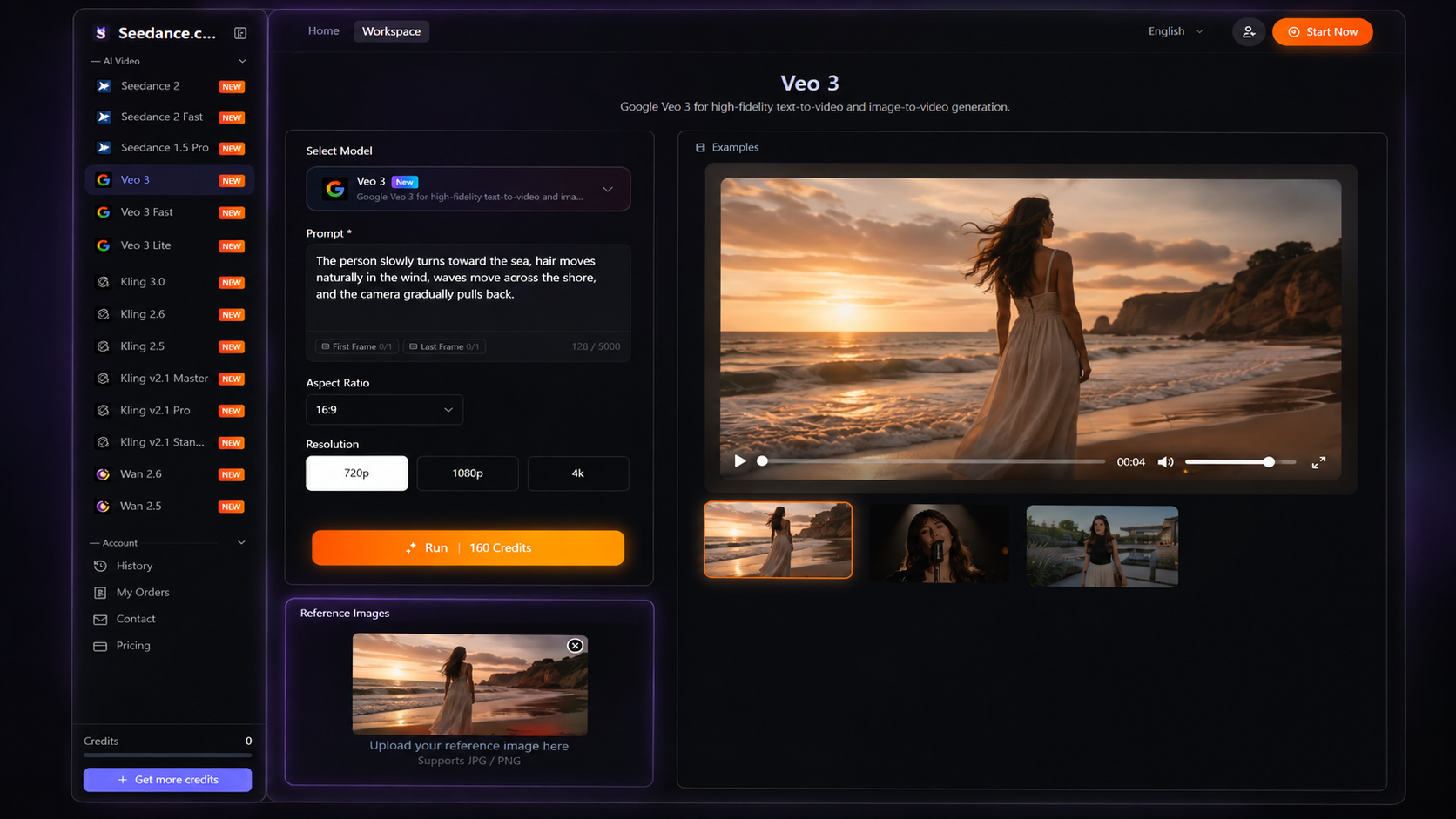
This is different from text-to-video because the image already provides much of the visual information.
For more guidance, read the Seedance Image-to-Video Tutorial.
How to Improve a Veo Generation
If the first result does not match your idea, avoid changing everything at once. Identify one specific problem first.
Movement is too weak: Make the action more specific.
Camera direction is wrong: Rewrite the camera instruction.
The scene feels too busy: Remove secondary actions or unnecessary details.
The atmosphere is wrong: Adjust lighting, environment, or visual style.
The reference is not being followed clearly: Simplify the prompt and make the intended movement more direct.
This makes it easier to understand which prompt changes are actually affecting the result.
How to Compare Veo Models
If you want to compare Veo 3, Veo 3 Fast, and Veo 3 Lite, keep the main creative input as consistent as possible.
Same Prompt + Same Reference + Similar Settings → Change the Veo Model
Then compare the generated results based on:
How closely the result follows the prompt
How the subject moves
How the camera direction is interpreted
How the environment changes
Which result better matches your intended video
This is more useful than changing the model, prompt, reference, and settings at the same time.
Veo Prompt Tips
Make the main action clear. Video prompts need movement, not only visual description.
Keep the scene focused. Avoid combining too many unrelated actions in one generation.
Use camera instructions when they matter. Do not add camera movement automatically to every prompt.
Use references with a clear purpose. The reference and prompt should support the same scene.
Refine one problem at a time. This makes each generation easier to evaluate.
Veo on Seedance.com.ai FAQ
Which Veo models are available on Seedance.com.ai?
The AI Video workspace includes Veo 3, Veo 3 Fast, and Veo 3 Lite.
Can I generate videos from text with Veo?
You can use the Prompt area to describe the video you want to create. The specific inputs and settings available depend on the selected Veo model.
Can I use reference images with Veo?
If the selected Veo model displays image reference input, you can add supported images directly through the workspace.
How should I improve a Veo prompt?
Identify what is wrong with the result and adjust the related part of the prompt. For example, strengthen the action description if the movement is too weak or change the camera direction if the framing does not match your idea.
How can I compare different Veo models?
Use the same main prompt and reference material, keep the settings as consistent as possible, then switch the Veo model and compare the results.
Start Creating with Veo on Seedance.com.ai
Using Veo on Seedance.com.ai starts with choosing the Veo model, defining your video idea, writing a clear prompt, adding supported references when needed, reviewing the available settings, and generating the result.
After the first generation, use the result as feedback. Refine the specific part that needs improvement or test another Veo version while keeping the same creative direction.



