
If you are new to AI video generation, this Seedance AI tutorial will show you how to create videos on Seedance.com.ai from start to finish. You will learn how to choose a Seedance model, write a prompt, add supported reference materials, adjust video settings, and generate your first AI video.
Seedance.com.ai brings multiple AI video models into one workspace, making it easier to experiment with different generation methods without constantly switching between platforms. This guide focuses specifically on how to use the Seedance AI models available on the platform.For a broader overview of the platform and its available AI video models, see our Seedance.com.ai AI Video Generator guide.
What Is Seedance AI?
Seedance AI is an AI video generation model designed to turn prompts and supported reference materials into video content. On Seedance.com.ai, users can access Seedance models through a shared AI video workspace and control the generation process with prompts, references, and video settings.
The basic workflow is straightforward: choose a model, describe the video you want to create, optionally add reference materials, configure the available settings, and generate the result.
Seedance Models Available on Seedance.com.ai
Seedance.com.ai provides several Seedance model options for AI video creation. The available Seedance models include:
Seedance 2
Seedance 2 Fast
Seedance 1.5 Pro
Each model is available through the same general workspace, so the overall creation process remains familiar when switching between Seedance models. The specific supported inputs and generation options may vary depending on the model you select.
How to Use Seedance AI on Seedance.com.ai
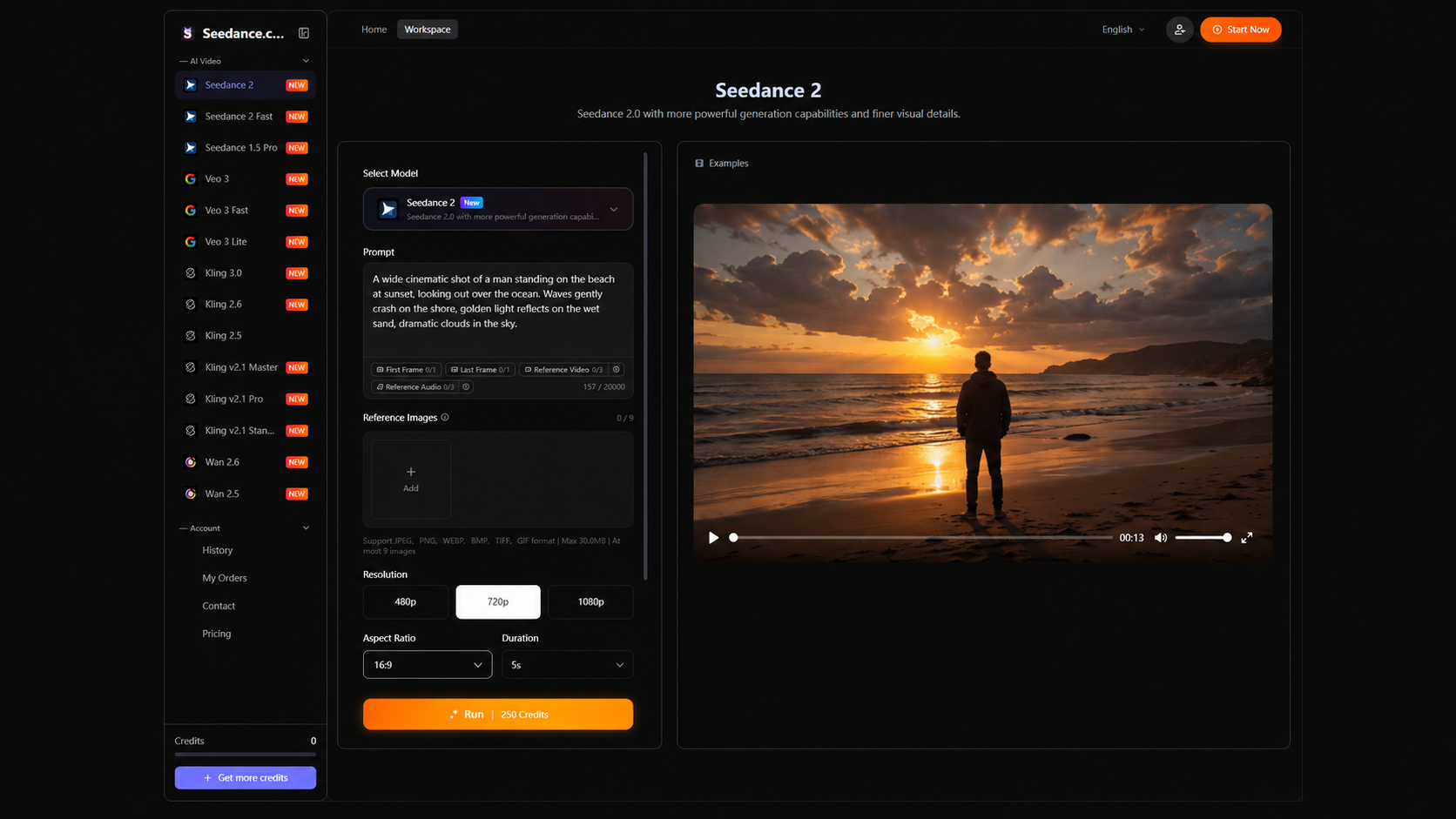
The Seedance AI video generation workflow can be broken down into five basic steps.
Step 1: Select a Seedance Model
Open the Seedance.com.ai AI Video workspace and choose the Seedance model you want to use. The model selection area lets you switch between the available Seedance options before starting your generation.
If you are experimenting with different models, keep your creative goal in mind when making a selection rather than changing several settings at once. This makes it easier to understand how each generation differs.
Step 2: Write Your Video Prompt
Use the Prompt area to describe what you want the AI to generate. A clear prompt should identify the main subject, what is happening in the scene, the environment, and any important visual or camera direction.
Subject + Action + Scene + Camera Movement + Visual Style
For example, instead of entering only “a woman near the ocean,” you can describe the action, setting, atmosphere, and camera movement more clearly. Specific visual direction usually gives the model more information to work with.
Step 3: Add Supported Reference Materials
Depending on the selected model, Seedance.com.ai can support reference materials such as images or videos. These references can help guide the visual subject, scene, movement, or other elements of the generated video.
When using references, focus your prompt on what should happen in the generated video rather than simply repeating everything already visible in the source material.
For more detailed guidance on using reference video to control motion and camera movement, read our Seedance reference video tutorial.
Step 4: Adjust the Video Settings
Before generating, review the settings available for the selected model. The Seedance.com.ai workspace includes controls such as resolution, aspect ratio, and video duration, although the exact options can vary by model.
Choose settings based on where the video will be used. For example, a horizontal aspect ratio may suit standard web video, while other formats may be more appropriate for different publishing scenarios.
Step 5: Generate Your AI Video
Once your model, prompt, references, and settings are ready, start the generation. Seedance.com.ai will process the inputs and produce the video result for you to preview.
If the result does not match your intended direction, review the prompt and references before generating again. Small changes to the action description, camera direction, or visual details can make the next attempt easier to control.
Seedance Text-to-Video
Seedance text-to-video is useful when you want to begin with an idea rather than an existing visual reference. You describe the scene through a prompt and let the model create the video based on that direction.
The key is to avoid prompts that are too vague. Describe the subject and action first, then add the scene, camera movement, lighting, or visual style when those details matter to the result.
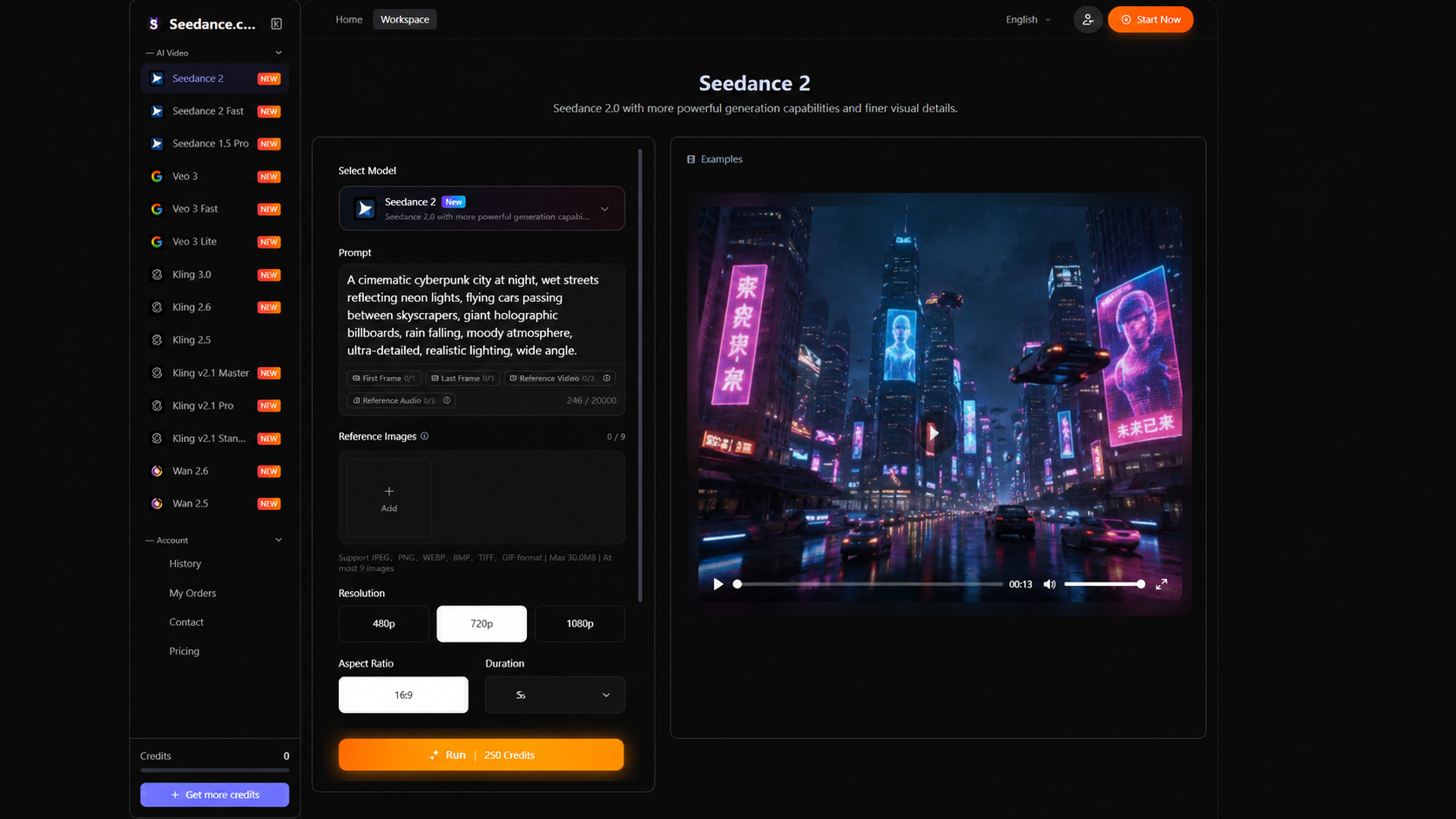
For a more detailed workflow, read the Seedance AI Text-to-Video Tutorial.
Seedance Image-to-Video
If you already have a starting image, Seedance image-to-video lets you use that visual material as a reference for video generation. In this workflow, the image provides visual information while the prompt explains how the scene should develop.
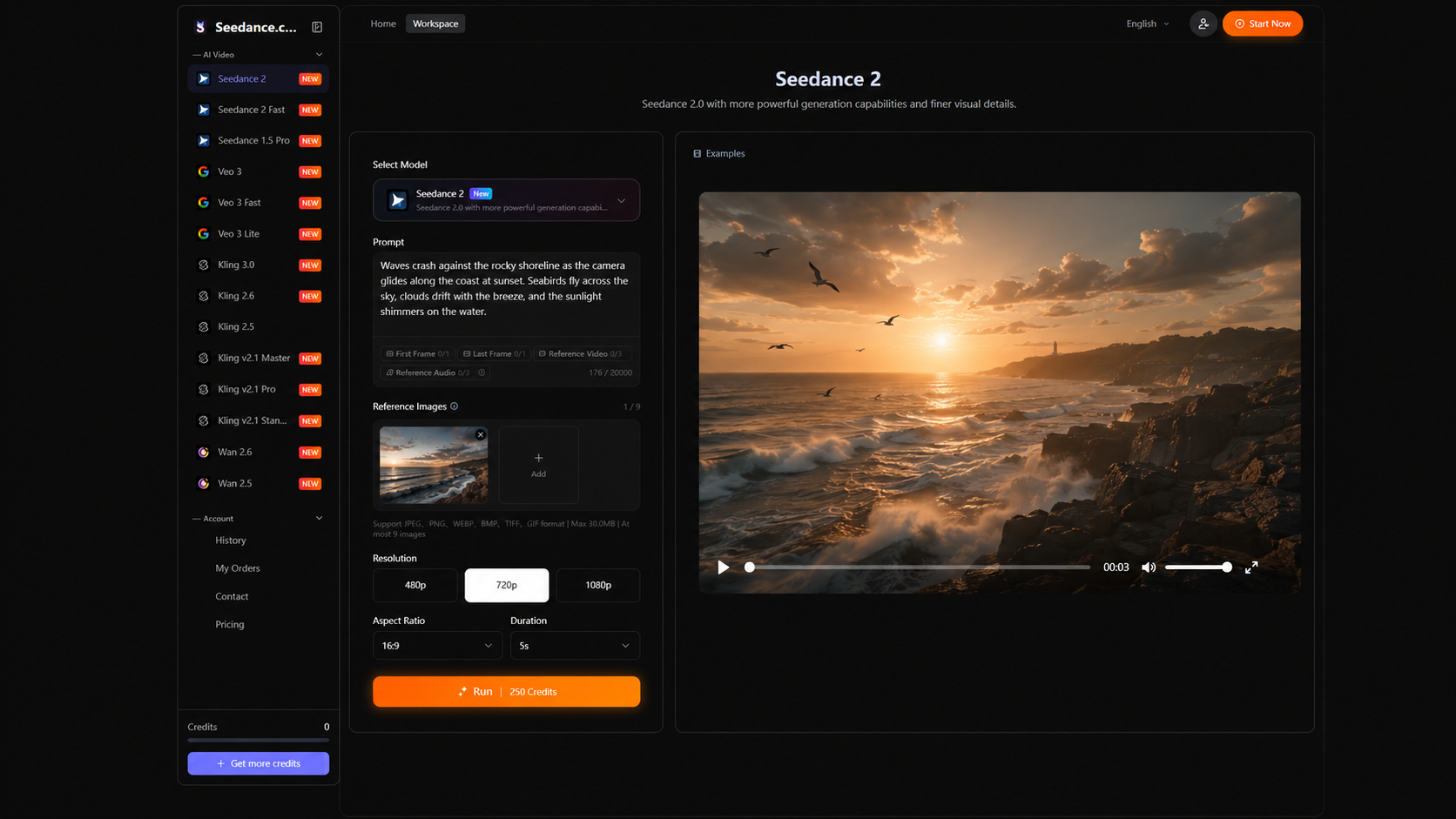
Instead of spending most of the prompt describing what is already visible, focus on movement. You can describe how the subject moves, what changes in the environment, and how the camera should behave.
For the full process, see the Seedance AI Image-to-Video Tutorial.
How to Write Better Seedance AI Prompts
A good Seedance AI prompt gives the model enough information to understand both the scene and the intended motion. You do not need to make every prompt extremely long, but the important visual instructions should be clear.
Subject + Action + Scene + Camera Movement + Visual Style
Start with the most important information. Clearly identify the subject and action before adding secondary details such as atmosphere, lighting, or camera direction.
For more prompt-writing examples and techniques, read the Seedance.com.ai AI Video Prompt Guide.
Tips for Better Seedance AI Video Results
Describe actions clearly. Use specific movement instead of vague phrases when motion is important to the scene.
Keep the main idea focused. Avoid filling a single prompt with too many unrelated subjects, actions, or scene changes.
Use references with a purpose. Add an image or video when it provides useful visual or motion guidance for the generation.
Review the available settings. Resolution, aspect ratio, duration, and supported reference options can depend on the selected model.
Refine one element at a time. If a result is not what you expected, adjusting one major instruction can make it easier to understand what changed.
Seedance AI Tutorial FAQ
How do I use Seedance AI on Seedance.com.ai?
Open the AI Video workspace, select a Seedance model, enter your prompt, add supported reference materials if needed, adjust the available generation settings, and start generating your video.
Can Seedance AI generate videos from text?
Yes. You can describe the video you want through a text prompt and use the available Seedance model to generate the result.
Can I use an image to generate a Seedance AI video?
Supported Seedance workflows can use images as reference material. The image provides visual guidance while your prompt describes the movement and direction you want in the generated video.
Which Seedance models are available on Seedance.com.ai?
The platform currently provides Seedance 2, Seedance 2 Fast, and Seedance 1.5 Pro among its available AI video model options.
How can I improve a Seedance AI prompt?
Clearly describe the subject, action, scene, camera movement, and important visual style. When using reference materials, focus the prompt on what should happen rather than repeating information already visible in the reference.
Start Creating with Seedance AI
Using Seedance AI on Seedance.com.ai does not require a complicated workflow. Start by choosing the model that fits your task, write a clear prompt, add references when they are useful, review the available settings, and generate the video.
Once you understand the basic workflow, you can continue with the dedicated text-to-video, image-to-video, and AI video prompt tutorials to explore each part of the creation process in more detail.



