
Creating an AI video does not always require an existing image or video. With Seedance text-to-video, you can begin with a written idea, describe the scene you want to create, and generate a video directly from your prompt.
This Seedance text-to-video tutorial explains how to create AI videos from prompts on Seedance.com.ai, including how to choose a Seedance model, write a clear video prompt, adjust the available settings, generate your video, and refine the result.
What Is Seedance Text-to-Video?
Seedance text-to-video is a workflow where a written prompt acts as the main creative input for AI video generation. Instead of starting with a reference image, you describe the subject, action, environment, camera movement, and visual direction you want the model to create.
This workflow is useful when you have an idea for a scene but do not already have suitable visual material. Your prompt provides the model with the information it needs to interpret the scene and generate the video.For a broader overview of the platform and its available AI video models, see our Seedance.com.ai AI Video Generator guide.
If you are looking for a broader overview of the platform and its complete workflow, read the Seedance AI Tutorial.
How to Create a Text-to-Video with Seedance
The basic Seedance AI text-to-video workflow can be completed in a few steps inside the Seedance.com.ai AI Video workspace.
Step 1: Choose a Seedance Model
Open the Seedance.com.ai workspace and select the Seedance model you want to use. The platform provides multiple Seedance model options, including Seedance 2, Seedance 2 Fast, and Seedance 1.5 Pro.
For your first generation, it is usually better to choose one model and focus on improving the prompt rather than changing several variables at the same time.If you also want to try text-to-video generation with Kling models, read our Kling AI Tutorial for the complete Kling workflow on Seedance.com.ai.
Step 2: Write Your Text-to-Video Prompt
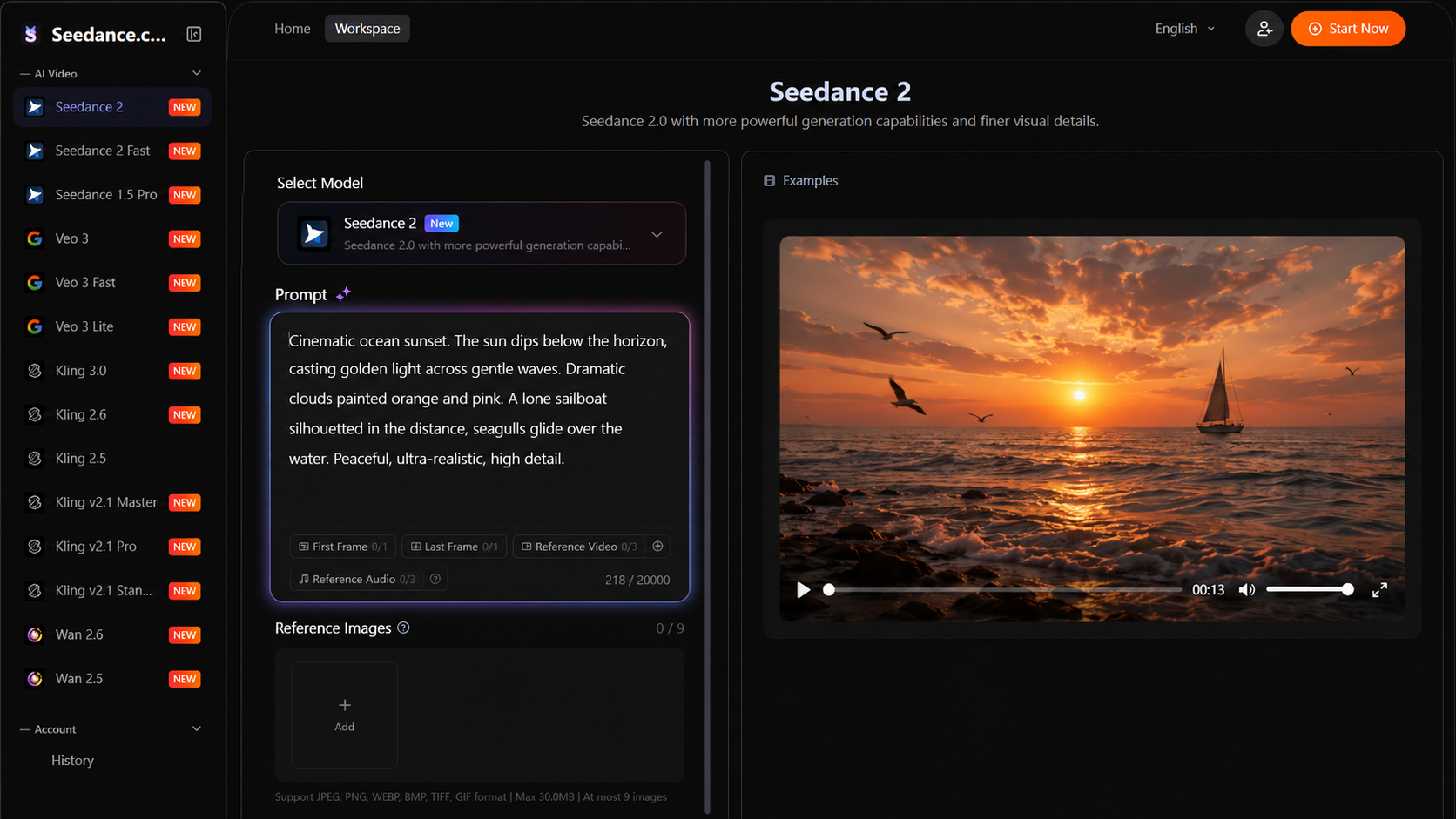
The Prompt area is the most important part of a text-to-video workflow. Describe what should appear in the video and what should happen during the scene.
A useful structure for a Seedance AI prompt is:
Subject + Action + Scene + Camera Movement + Visual Style
For example, instead of writing only:
A man standing on a beach.
You can give the model more useful direction:
A man stands on a quiet beach at sunset, looking toward the ocean as waves move gently across the shore. The camera slowly pulls back, warm golden light reflects on the wet sand, cinematic atmosphere.
The second prompt explains not only what is in the scene, but also the movement, environment, camera direction, and visual atmosphere.
Step 3: Adjust the Video Settings
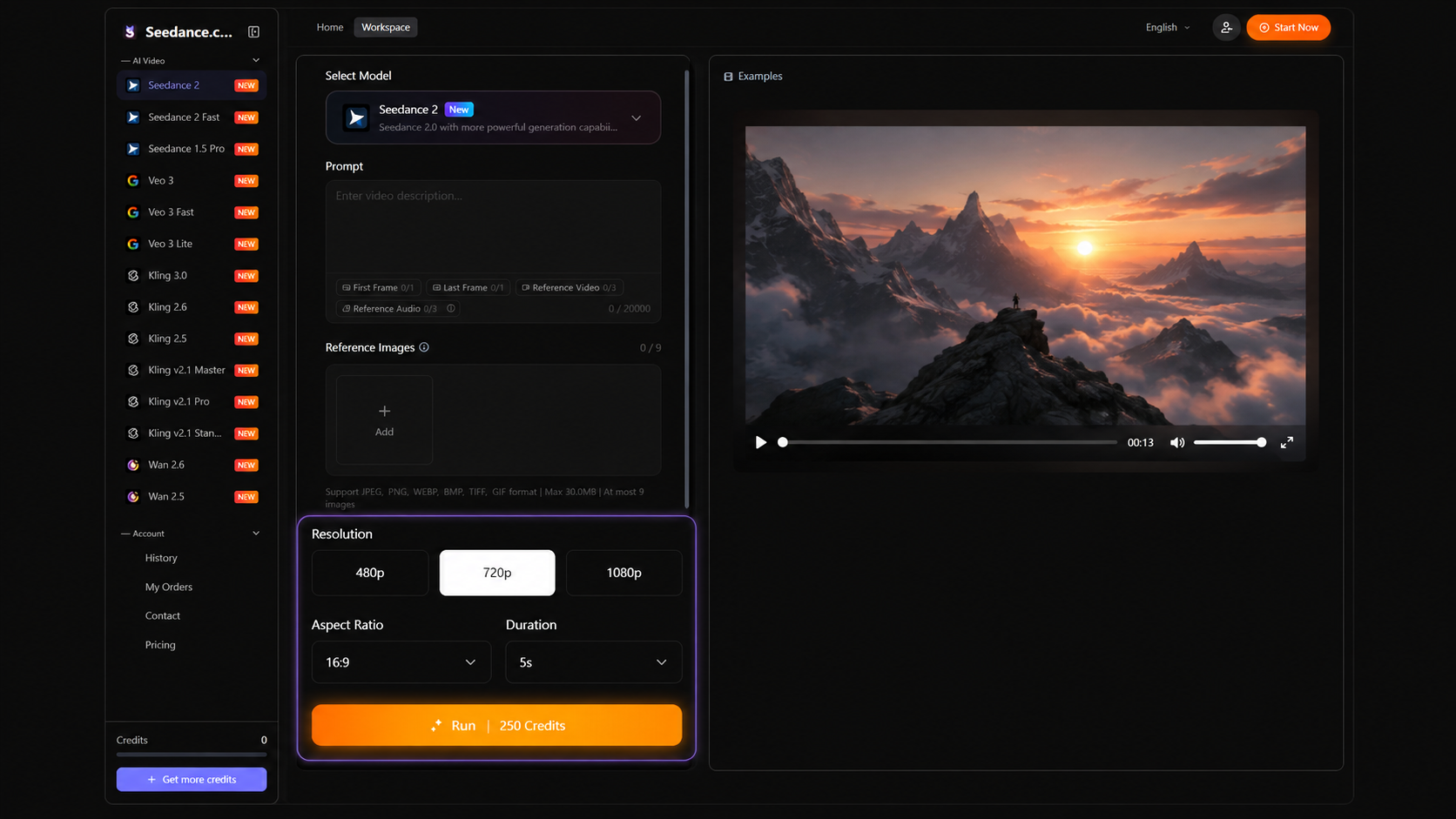
After writing your prompt, review the generation settings available for the selected model. Seedance.com.ai provides controls such as resolution, aspect ratio, and duration.
Choose these settings according to the type of video you want to create. The exact options available may vary depending on the selected model.
Step 4: Generate the Video
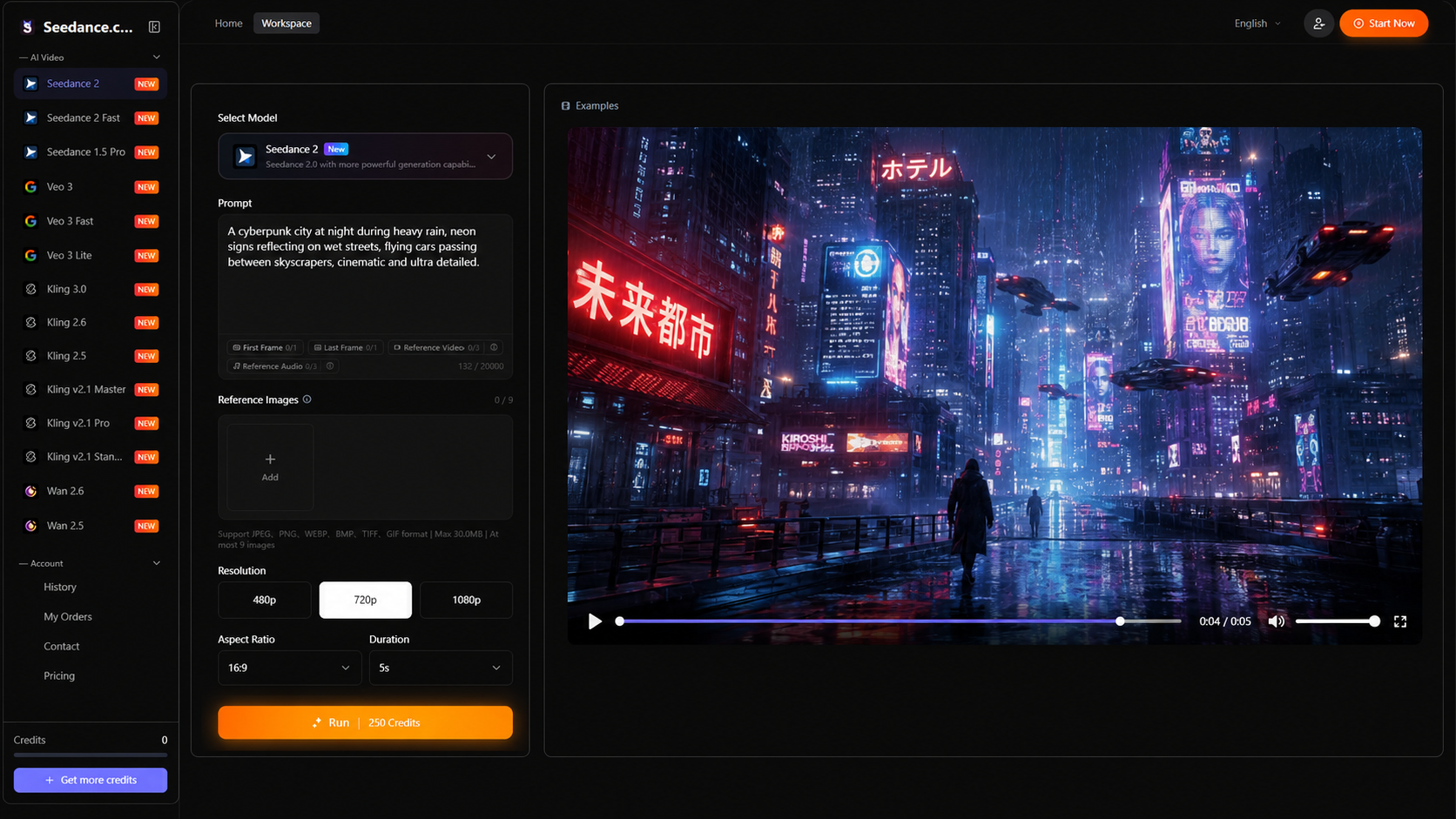
Once your model, prompt, and video settings are ready, start the generation process. Seedance.com.ai will use your text instructions to create the video result.
After the generation is complete, review whether the subject, movement, environment, and camera behavior match the direction you described.
Step 5: Refine the Prompt if Needed
Your first result does not always need to be the final version. If something is not working, identify the part of the video that needs improvement and adjust the corresponding part of your prompt.
For example, if the scene looks correct but the movement is too weak, make the action more specific. If the camera feels static, describe a clearer camera movement rather than rewriting the entire prompt.
How to Write Better Seedance Text-to-Video Prompts
A text-to-video prompt should give the model enough information to understand both the visual scene and how that scene changes over time.
Focus on these five elements:
Subject: Identify the main person, object, animal, or environment in the video.
Action: Explain what the subject is doing or how the scene is changing.
Scene: Describe the location, surroundings, lighting, weather, or atmosphere when they are important.
Camera Movement: Add directions such as a slow pull-back, tracking shot, push-in, or other movement when needed.
Visual Style: Describe the intended visual direction, such as cinematic, realistic, dramatic, soft, or atmospheric.
You do not need to make every prompt extremely long. A focused prompt that clearly describes the important visual and motion information is usually more useful than a long prompt filled with unrelated details.
For a deeper explanation of prompt structure and writing techniques, see the Seedance.com.ai AI Video Prompt Guide.
Common Text-to-Video Prompt Problems
The Prompt Is Too Vague
A short prompt such as “a futuristic city” identifies a subject but gives very little information about what should happen. Add action, atmosphere, camera direction, or other important details when they matter to the scene.
Too Many Ideas Are Combined in One Scene
Trying to include several subjects, locations, actions, and visual changes in one prompt can make the direction less focused. Start with one clear scene and one main action.
The Motion Is Not Clearly Described
Text-to-video generation depends heavily on motion instructions. If movement is important, describe it directly rather than expecting the model to infer exactly what you want.
The Camera Direction Is Missing
If you want a specific cinematic feeling, adding simple camera movement can make the intended result clearer. Use camera directions only when they are relevant to the scene.
Text-to-Video vs Image-to-Video
The main difference is the starting material.
Text-to-video begins primarily with a written prompt. It is useful when you want to create a new scene directly from an idea.
Image-to-video begins with an existing image that provides visual guidance, while the prompt describes how that image should move or develop.
If you already have a still image that you want to animate, read the Seedance Image-to-Video Tutorial instead.
Seedance Text-to-Video Tips
Start with the main action. Make it immediately clear what should happen in the video.
Keep one main idea per generation. A focused scene is easier to describe and refine.
Describe movement directly. Avoid relying only on visual adjectives when the motion is important.
Add camera direction when useful. Camera movement can help define the visual rhythm of the scene.
Change one important element at a time. This makes it easier to understand why the next result is different.
Seedance Text-to-Video FAQ
Can Seedance generate videos directly from text?
Yes. You can enter a written prompt in the Seedance.com.ai workspace and use a supported Seedance model to generate an AI video based on your description.
What should I include in a Seedance text-to-video prompt?
A useful prompt usually describes the subject, action, scene, camera movement, and important visual style. Focus on the information that directly affects the video you want to create.
Do I need an image for Seedance text-to-video?
No. A text-to-video workflow can begin with a written prompt. If you want to use an existing image as visual guidance, that becomes an image-to-video workflow instead.
What settings can I adjust before generating?
The Seedance.com.ai workspace provides generation controls such as resolution, aspect ratio, and duration. Available options can vary depending on the model you select.
How can I improve a generated video?
Review the result and identify the specific element that needs improvement. Then adjust the related part of your prompt, such as the action, camera movement, scene description, or visual direction.
Start Creating Seedance Text-to-Video
The Seedance text-to-video workflow is straightforward: select a model, write a clear prompt, adjust the available settings, generate the video, and refine your instructions when necessary.
Once you are familiar with this process, you can explore other Seedance.com.ai workflows such as image-to-video generation or improve your results further by learning how to write more precise AI video prompts.



